
What will you need to create your Ghost blog on Kubernetes?
In this tutorial, I will cut out all the confusion and share a straight path to getting Ghost blog running with a MySQL database utilizing Kubernetes. We are going to:
- Create a Linode hosting account.
- Create a Kubernetes cluster.
- Create 2 Pods for
a. ghost
b. MySql - Setup your domain dns, an Ingress, and SSL.
- Load your website in the browser.
We will run our ghost site at Linode so that it is publicly available on the internet. Linode is a cloud hosting provider with very reasonable prices for hosting your Kubernetes cluster.
Most of this process will work equally well on other web hosts with some slight adaptions.
What you will need:
- An account at Linode
- A domain name that you own and can point to your Linode hosted site.
- (Helpful but not required) A little knowledge of YAML files, command line, and Kubernetes will be helpful but you should be able to copy-paste from this article even if you have never used these.
Where should I host my Ghost blog?
First, you will need an account at Linode. Below is an affiliate link to get a $100 credit at their service. I appreciate you using the link if you want to create an account with them.
$100 credit for Linode Hosting
How do I create my Kubernetes cluster at Linode?
Once your account is created you should see a dashboard like this.
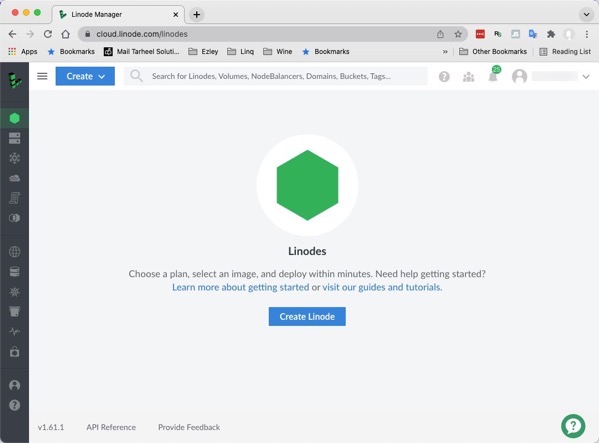
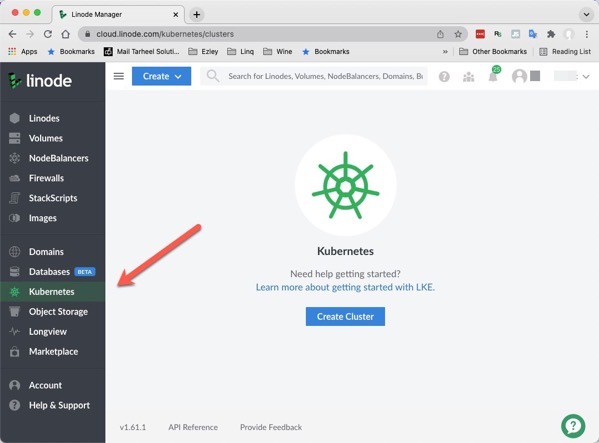
After you have an account at Linode, you will want to create your Kubernetes cluster. On the left menu, click on ‘Kubernetes’
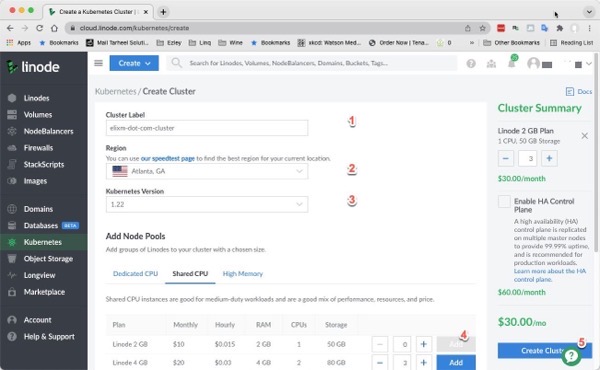
On the ‘Create Cluster’ page, enter:
1. Cluster Label
2. Region
3. Kubernetes version (I selected the newest at the time).
Then we select three of the least expensive ‘Shared CPU’ instances. You can scale down to just one instance if you like to reduce your price to $10/month. You can also run through this tutorial and remove your resources when you are done and it will only cost you for the time you have resources allocated. I selected this $30/month plan but after creating everything I deleted it the next day and owed about $1.00.

Once you create your cluster, click Kubernetes on left menu to reload the page.
Then click the Download Kubeconfig. link (it might take a few minutes to show up.)
We will be using the kubectl (Kubernetes Commandline Tools) for this. Please follow the directions at https://kubernetes.io/docs/tasks/tools/ to get it installed on your computer.
I’m on a Mac, so if you are using Windows, your process with the terminal may be a little bit different. Please adjust for your OS and filesystem accordingly.
How do I set my Kubernetes context?
You will want to copy the contents of the Kubeconfig file you downloaded to a file named ‘config’ in the “~/.kube” folder (ie: “~/.kube/config”)
Run the following commands to see if you have a ‘config’ file.
cd ~/.kube
ls
Locate your config file in the /.kube folder
Open, or create the ‘config’ file in a text editor. I’ll be using nano for my text editor.
nano config
If you have an existing config file it will look something like this. If you are creating it, it will be blank.
My image is missing from here
Kubernetes config file
Copy the contents of the Kubeconfig file you downloaded into this config file.
Save it by clicking “ctrl + x” (then follow the prompts clicking Y and accepting the name ‘config’).
How do I create my Kubernetes Deployments?
You are ready to use ‘kubectl’. In your terminal type:
kubectl get pods
You will get a response of:
bash

 No resources found in default namespace.
Create a folder called “ghost-blog” so you can follow along, and navigate into the folder.
Makes a directory ‘ghost-blog’ then changes directory so you are in the folder.
Let’s create a file where we will save a password that is used by both our ‘ghost-blog’ deployment and our ‘mysql’ deployment.
Create and save a file called ‘ghost-secrets.yaml’ with this content:
apiVersion: v1
kind: Secret
metadata:
  name: ghost-secrets
  namespace: default
type: Opaque
stringData:
  password: my-secret-Password123

Setup MySql deployment by creating a file named 'ghost-mysql.yaml' with this content:
apiVersion: v1
kind: Service
metadata:
  name: ghost-mysql
  namespace: default
  labels:
    app: ghost
spec:
  ports:
    - port: 3306
  selector:
    app: ghost
    tier: mysql
  clusterIP: None
---
apiVersion: v1
kind: PersistentVolumeClaim
metadata:
   name: mysql-pv-claim
   namespace: default
spec:
   accessModes:
   - ReadWriteOnce
   resources:
     requests:
       storage: 10Gi
   storageClassName: linode-block-storage-retain
---
apiVersion: apps/v1
kind: Deployment
metadata:
  name: ghost-mysql
  namespace: default
  labels:
    app: ghost
spec:
  selector:
    matchLabels:
      app: ghost
      tier: mysql
  strategy:
    type: Recreate
  template:
    metadata:
      labels:
        app: ghost
        tier: mysql
    spec:
      containers:
      - image: mysql:5.7
        args:
          - "--ignore-db-dir=lost+found"
        name: mysql
        env:
        - name: MYSQL_ROOT_PASSWORD
          valueFrom:
            secretKeyRef:
              name: ghost-secrets
              key: password
        ports:
        - containerPort: 3306
          name: mysql
        volumeMounts:
        - name: mysql-persistent-storage
          mountPath: /var/lib/mysql
      volumes:
      - name: mysql-persistent-storage
        persistentVolumeClaim:
          claimName: mysql-pv-claim
Setup MySql deployment by creating a file named ‘ghost-blog.yaml’ with this content:
apiVersion: v1
kind: Service
metadata:
  name: ghost-blog
  namespace: default
spec:
  selector:
    app: ghost-blog
  ports:
  - protocol: TCP
    port: 80
    targetPort: 2368
---
apiVersion: v1
kind: PersistentVolumeClaim
metadata:
   name: blog-content
   namespace: default
spec:
   accessModes:
   - ReadWriteOnce
   resources:
     requests:
       storage: 10Gi
   storageClassName: linode-block-storage-retain
---
apiVersion: apps/v1
kind: Deployment
metadata:
    name: ghost-blog
    namespace: default
    labels:
        app: ghost-blog
spec:
    replicas: 1
    selector:
        matchLabels:
            app: ghost-blog
    template:
        metadata:
            labels:
                app: ghost-blog
        spec:
            containers:
            - name: ghost-blog
              image: ghost:4
              imagePullPolicy: Always
              ports:
                - containerPort: 2368
              env:
                - name: url
                  value: https://womensbicycling.com
                - name: database__client
                  value: mysql
                - name: database__connection__host
                  value: ghost-mysql
                - name: database__connection__user
                  value: root
                - name: database__connection__password
                  valueFrom:
                    secretKeyRef:
                      name: ghost-secrets
                      key: password
                - name: database__connection__database
                  value: womensbic-db
              volumeMounts:
              - mountPath: /var/lib/ghost/content
                name: blog-content
            volumes:
            - name: blog-content
              persistentVolumeClaim:
                claimName: blog-content
Now let’s run these commands :
kubectl apply -f ghost-secrets.yamlkubectl
apply -f ghost-mysql.yamlkubectl
apply -f ghost-blog.yaml
Now run:
kubectl get pods
kubectl get pods
You will see something like:
Marcs-MBP-2018:ghost-blog marctalcott$ kubectl get podsNAME READY STATUS RESTARTS AGEghost-blog-7d5bd6fb5f-vbzsm 0/1 ContainerCreating 0 6sghost-mysql-85d97d5884-tb6jk 1/1 Running 0 7m14sMarcs-MBP-2018:ghost-blog marctalcott$
Refresh that until you see that your ghost blog is in a Ready state.
Now that we have pods running, we need to set up a way to navigate to our ghost website using our own domain name. We will eventually have SSL, but let’s get this to work without SSL first.
Setup your public endpoint:
helm repo add ingress-nginx https://kubernetes.github.io/ingress-nginx
helm repo update
helm install ingress-nginx ingress-nginx/ingress-nginx
Once that completes you can obtain your public IP with:
kubectl --namespace default get services -o wide -w ingress-nginx-controller
You will see something like:
NAME                       TYPE           CLUSTER-IP      EXTERNAL-IP    PORT(S)                      AGE   SELECTOR
ingress-nginx-controller   LoadBalancer   10.128.10.151   45.79.63.154   80:31893/TCP,443:32317/TCP   44s   app.kubernetes.io/component=controller,app.kubernetes.io/instance=ingress-nginx,app.kubernetes.io/name=ingress-nginx
How do I connect my domain name to my website?
Make a note of your external IP value. We will need that to set up your domain to point to your public IP. Setup your DNS using your domain host’s instructions to setup ‘A’ records for ‘*’ and ‘www’ pointing to your Linode public IP address.
Here is my domain with the IP address set correctly:
My image is missing
DNS setting for your www and * A records
DNS changes can take a little while to update so if you may find the following doesn’t work for a while. Give it time. It could take several hours but usually takes a few minutes.
Let’s set up your Ingress while we wait for your DNS changes to take effect. The Ingress is responsible for receiving traffic at your external IP and passing it to your Kubernetes pod.
ghost-ingress.yaml
( * change this file by replacing ‘womensbicycling.com’ with your domain name)
apiVersion: networking.k8s.io/v1
kind: Ingress
metadata:
  name: ghost-ingress
  annotations:
    kubernetes.io/ingress.class: nginx
    cert-manager.io/cluster-issuer: letsencrypt-prod
spec:
  rules:
  - host: womensbicycling.com
    http:
      paths:
      - pathType: Prefix
        path: "/"
        backend:
          service:
            name: ghost-blog
            port:
              number: 80
  - host: www.womensbicycling.com
    http:
      paths:
      - pathType: Prefix
        path: "/"
        backend:
          service:
            name: ghost-blog
            port:
              number: 80
Once you have the file created you can apply it with :
kubectl apply -f ghost-ingress.yaml
And you run this command to see your external IP is connected to your ingress:
bash

kubectl get Ingress
You should see something like:
NAME            CLASS    HOSTS                                         ADDRESS        PORTS   AGE
ghost-ingress      womensbicycling.com,www.womensbicycling.com   45.79.63.154   80      16m
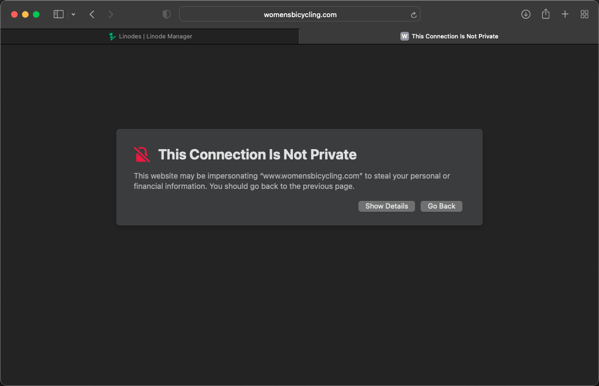
Navigate to your site. If your dns is set up correctly you might see something like this:
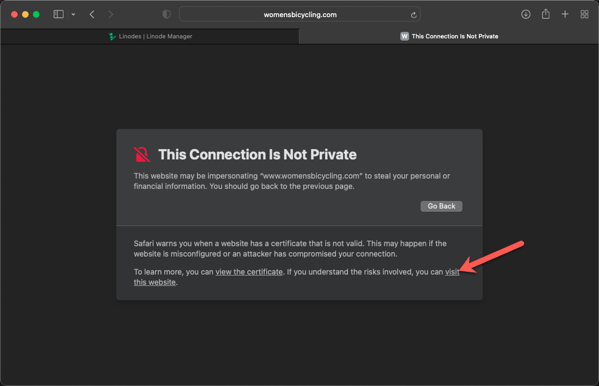
Click this link to load it anyway:
You will see this:
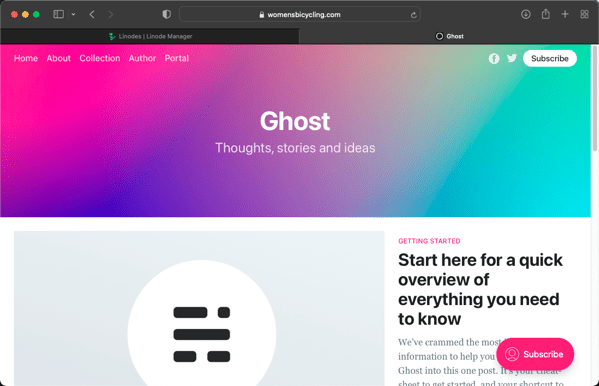
Ghost site without SSL
That’s exciting… But it is loading without SSL, so let’s fix that SSL now.
How do I secure my site with free SSL?
Create a namespace called cert-manager
kubectl create namespace cert-manager
Install cert-manager:
kubectl apply -f https://github.com/jetstack/cert-manager/releases/download/v1.4.0/cert-manager.yaml
That will take a minute and you will see lots of items being created.
Create this file as ‘production_issuer.yaml’ in your folder so we can apply it:
apiVersion: cert-manager.io/v1
kind: ClusterIssuer
metadata:
  name: letsencrypt-prod
spec:
  acme:
    # Email address used for ACME registration
    email: [yourEmail@example.com]
    server: https://acme-v02.api.letsencrypt.org/directory
    privateKeySecretRef:
      # Name of a secret used to store the ACME account private key
      name: letsencrypt-prod-private-key
    # Add a single challenge solver, HTTP01 using nginx
    solvers:
    - http01:
        ingress:
          class: nginx≈
Now apply it:
kubectl apply -f production_issuer.yaml
You can verify it has been created successfully by running:
“`bash
kubectl get ClusterIssuer
“`
You should see something like:
“`bash
NAME READY AGE
letsencrypt-prod True 27s
“`
We are going to use LetsEncrypt to get free SSL. We need to generate a certificate and private key for our domain. I’m going to suggest this article for showing you how to generate your keys. This is the tut I followed: [https://help.datica.com/hc/en-us/articles/360044373551-Creating-and-Deploying-a-LetsEncrypt-Certificate-Manually]
After completing that process you should have 2 files one for your private key and one for the certificate. If you open the files you will see they contain plain text. We need to convert the contents of each file into a base64 encoded string.
Using your file names type something like this at your terminal (with your file name where I have ‘private.crt’. It will create a long base64 string.
Hint to create base64 encoded strings of your values you need:
> cat privkey.pem | base64
Copy the strings into this file and save this file:
tls-secret.yaml deployment
apiVersion: v1
data:
  tls.crt: [your base64 econded certificate]
  tls.key: [your base64 encoded private key]

kind: Secret
metadata:
  name: my-site-tls
  namespace: default
type: kubernetes.io/tl
Be sure not to break the strings. They should be long like this:
My image is missising from here
Save your file and then you can run this:
kubectl apply -f tls-secret.yaml
Now we will edit our Ingress so that it will use our SSL.
Add the lines that are between the ‘####’ bars in the following to your ‘ghost-ingress.yaml’
apiVersion: networking.k8s.io/v1
kind: Ingress
metadata:
  name: ghost-ingress
  annotations:
    kubernetes.io/ingress.class: nginx
    cert-manager.io/cluster-issuer: letsencrypt-prod
spec:
  ###########################
  tls:
  - hosts:
    - womensbicycling.com
    - www.womensbicycling.com
    secretName: my-site-tls
  ###########################
  rules:
  - host: womensbicycling.com
    http:
      paths:
      - pathType: Prefix
        path: "/"
        backend:
          service:
            name: ghost-blog
            port:
              number: 80
  - host: www.womensbicycling.com
    http:
      paths:
      - pathType: Prefix
        path: "/"
        backend:
          service:
            name: ghost-blog
            port:
              number: 80
Apply the changes with:
kubectl apply -f ghost-ingress.yaml
It may take a few minutes before your ssl begins to work properly, but you should soon be able to load the pages using https://%5Byourdomain%5D and see the padlock in the address bar confirming you are successfully using SSL
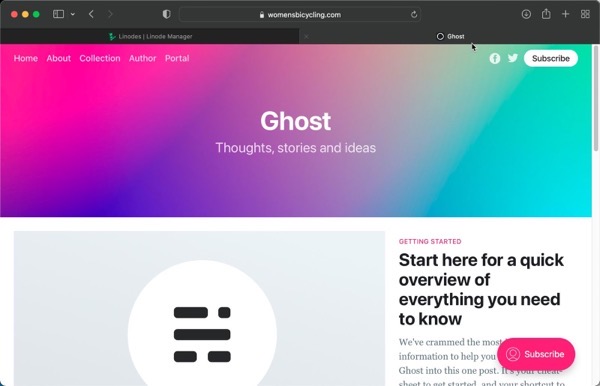 Ghost site with SSL
Congratulations on building your Ghost blog using Kubernetes and hosting it Linode. I hope this helped you.
 Elixm.com
Leave a comment