There are several options for hosting your Ghost blog. The easiest method to get started would be to host it at Ghost.org for as little as $9/mo.
If you only have one blog to host, you should probably opt to host it at Ghost.org because, for $9.00 a month, that is THE no-hassle way to go. But if you have 2 or more sites and if you are interested in hosting it yourself, then it may be more economical and rewarding to host it yourself on a Kubernetes cluster. If that sounds like fun, this article is for you.
This article explains how to set up your own Kubernetes cluster, and then set up a Ghost blog on that cluster. Once you have the first blog setup, you can easily add many more on the same cluster, using the same database server. Let’s get started! 👍
Here are the steps we will take in this tutorial.
- Setup Kubernetes (the cluster where your site(s) will live).
- Setup your own MySQL Server
- Setup your SSL certificate
- Setup your Kubernetes YAML files.
- Deploy your site.
- Point your domain to your new website.
Shew that sounds like a lot, but this will be easy. I promise.
Pre-requisite A) Own a domain name
If you don’t already own a domain name, you can easily purchase one through https://domains.google/ .
Pre-requisite B) Install Kubectl
You are going to need to run some simple commands with the Kubernetes Command-Line to see and manage your resources so go ahead and install kubectl.
On macOs run:
brew install kubectl
If you are on Windows you can use Chocolatey or Scoop. See instructions at https://kubernetes.io/docs/tasks/tools/install-kubectl-windows/.
Let’s get started!
1) Setup Kubernetes (at Linode)
You don’t have to have your k8s (Kubernetes) cluster at Linode. If you already have a k8s cluster setup and you can access it then please skip ahead to 3) Setup MySQL Server.
If you don’t already have a k8s cluster, then I suggest you use Linode because A) they make it really easy to set up Kubernetes, and B) you can sign up and get $100 off your first 60 days which means you can do this tutorial without paying a penny out of your pocket. You can easily run it for the entire 60 days and not exceed your credit.
Linode makes this so easy!
Login to your account and click ‘Kubernetes’ on the left menu, then click ‘Create Cluster’.
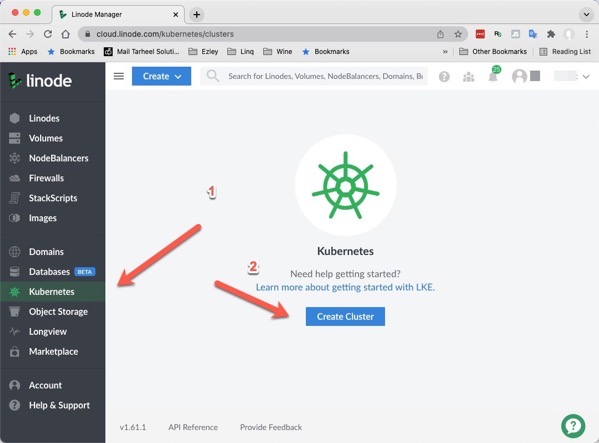
Creating a Kubernetes cluster at Linode.
Create a Cluster with a Node Pool
Next, we will create a node pool consisting of 2 nodes on the ‘Shared CPU’ tab. These cost $10 per node and we need at least 2 because we going to set up a MySQL Server that needs 2 GB memory, and then we need more memory for our sites. (Make sure you select the ‘Shared CPU’ tab for these lower prices.) Add a node pool with at least 2 nodes.
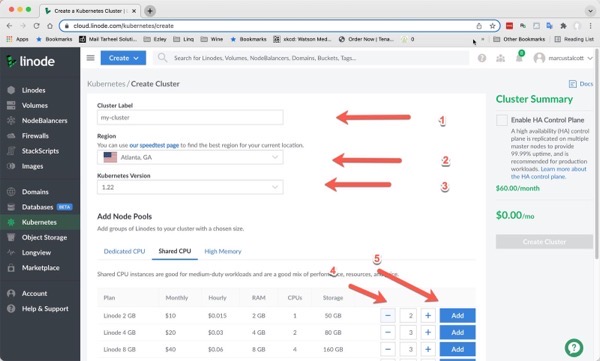
Add a node pool with at least 2 nodes if using Shared CPU.
On the next screen, click ‘Create Cluster’ and then your cluster will spin up.
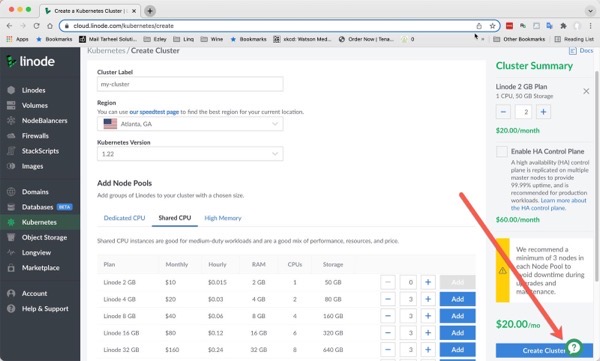
After your cluster is created, you will be able to download your kubeconfig file. If you named things as I did, this will result in a file named ‘my-cluster-kubeconfig.yaml’ in your downloads folder.
As a best practice, you should set the permission on this file so it is only accessible to you as follows.
# Type at your command line:

chmod go-r $HOME/Downloads/my-cluster-kubeconfig.yaml
Set KUBECONFIG for your terminal session
Next, we want to make the kubeconfig available in our current environment so we can connect to the cluster using kubectl.
# Type at your command line:

 export KUBECONFIG=$HOME/Downloads/my-cluster-kubeconfig.yaml
- The line above sets the KUBECONFIG only for this terminal session. Each terminal session you start will require this line. Making this setting persistent is out of scope for this article. Just remember that if you open a new terminal and kubectl doesn’t see your cluster you need to run the line above again.
View your new Nodes on your Cluster.
# Type at your command line:

kubectl get nodes
This should show a list of nodes in your cluster. The number of nodes should match what you registered for in the Linode UI.
Congratulations!! You have your own K8s cluster now running.
2) Setup MySQL Server
- As I’m writing this, Linode is offering a managed MySQL service, so you can use that if you want, or you can proceed with this step and create your own MySQL server in your cluster, which is my preference, but it means I’m responsible for my own backups (and you will be for your backups). So choose your path and create your database, then proceed to step 3 (Setup your SSL certificate)
Let’s set up a MySQL server on your cluster than can be used by your websites and applications. See my article on setting up MySQL on a Kubernetes cluster at Linode. After you have your MySQL Server and a database, and user setup, and have verified you can access the database as that user, come back here to continue.
3) Setup your SSL certificate
You can either purchase an SSL certificate for your site or create your own. To create a free SSL certificate you can follow the instructions on my create-ssl-with-certbot article , then come back here to proceed.
Once you have received your SSL certificate file and your full chain file you need to get a base64 string value for the contents of each file. Using the file paths to your (1) full chain file and (2) private key file, run the commands below and make a note of the output of each command. Make sure not to add any line breaks or whitespace into the output strings.
Get your base64 encoded full chain (* edit the path so it points to your file):
sudo cat /etc/letsencrypt/live/yourdomain.com/fullchain.pem | base64
Get your base64 encoded private key (* edit the path so it points to your file):
“`bash
sudo cat /etc/letsencrypt/live/yourdomain.com/privkey.pem | base64
“`
🧢 Recap of where we are… 🧢
You have created a Kubernetes cluster of your own.
You have prepared your MySQL server, and you have a database and a user account on that server.
You have a domain name and we have created our SSL certificate.
You have created the base64 encoded values of the SSL full chain and SSL private key so that you can use those in your k8s configuration YAML files (coming up).
4) Setup your Kubernetes YAML files
Oh, we are so close now… 😃
I have created a github repo (ghost-blog-kubernetes) you can clone, or you can copy the code from the files manually to your own drive. Go ahead and clone the repo or copy the files into a local folder.
You only need to edit two of these files.
- config.sh
- secrets.yaml
Let’s start with the config.sh. Near the top of the file there are several variables that you can adjust to suit your needs:
# config.sh

...

NAMESPACE="default"                      # Leave this as 'default' unless you know why you are changing it
APP_NAME="mysite"                        # I suggest using your domain name without the .com so you can easily identify the app.
DOMAIN="mysite.com"                      # Set to your domain name
PRIMARY_URL="https://${DOMAIN}"        # You probably don't want to change this one. This defines your URL.

TLS_CRT="yourBase64EncodedSSLCert"       # Your base64 encoded SSL Cert.
TLS_KEY="yourBase64EncodedSSLPrivKey"    # Your base64 encoded Private Key for the SSL Cert.

TEMPFOLDER="temp"                        # Don't change this. We use this folder to put generated files and deploy. Then we delete it.


...
Suggestions for variables:
- NAMESPACE – Leave it as it is.
- APP_NAME – Change it to a value to match your domain name without any punctuation (ex. mywebsitecom or elixmcom, something like that).
- DOMAIN – The URL you want users to see in the browser address bar. (must match one of your subdomains).
- PRIMARY_URL – Leave it as it is.
- TLS_CRT – paste your base64 encoded value from your fullchain.pem file (don’t add any line breaks)
- TLS_KEY – paste your base64 encoded value from your privkey.pem file (don’t add any line breaks)
- TEMPFOLDER – Leave it as it is.
Next you need to edit the secrets.yaml to contain your database information. The file looks like this to start:
#secrets.yaml

# Don't store your real secrets in git.
# Put them in your Password Keeper
# This file is here as an example

apiVersion: v1
kind: Secret
metadata:
  name: ghost-secrets-CONFIG_APP_NAME
  namespace: CONFIG_NAMESPACE
type: Opaque
stringData:
  dbhost: yourDbServer
  dbname: yourDbName
  dbuser: yourDbUser
  dbpassword: yourDbPassword
Edit the following values at the bottom of the file.
- dbhost: Depending on how you setup your MySQL server, this varies. If you setup your own server on the cluster using my tutorial, you should use the name of your mySQL ClusterIP that does not have an internal IP.
kubectl get services
which will return something like:

I would use the value ‘mysql’ as my dbhost according to these results.
- dbname – Set this to your database name.
- dbuser – Set this to your database user’s name
- dbpassword – Set this to your database user’s password
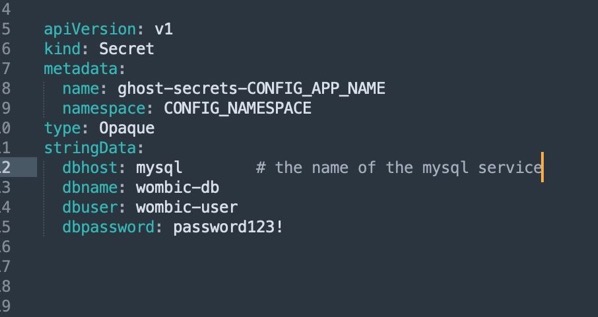
Secrets file after I added my MySQL information.
Save your changes.
5) Deploy your site
Make sure you saved your changes to both config.sh and secrets.yaml.
Open a terminal window in the folder where your yaml files are.
Make sure you connect to your k8s by checking that you can see the pods:
“`bash
kubectl get nodes
“`
If you didn’t see your nodes when you ran the above, then you might need to reset your KUBECONFIG setting. We discussed that above.
Are you ready? I think you are ready… 🧐
Run your script to deploy your website:
bash config.sh
You should see some really great messages about your services getting created like the following image:
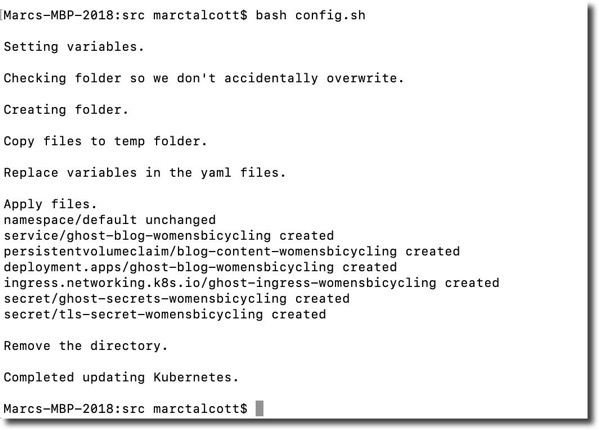
Screenshot of successfully created Kubernetes website and services.
The output above tells us that all of our k8s resources for the website were created as we expected. To check on your website does spin up completely, you should run the following commands to check its status on your cluster:
kubectl get pods
If all went well, your pod will be in a ready state like this:
 [images successfulpod]
Diagnosing problems with the pod deployment:
If the STATUS indicates there is a problem then copy the Name value of the pod so you can run the logs and describe commands to get an understanding of the problem(s):
# This is the command to view logs of your pod
kubectl logs <podname>

# This is the command to 'describe' your pod
kubectl describe pod <podname>
The logs and describe commands are helpful for diagnosing problems with your pods.
Once your pod is in a ‘Ready’ state, move on to setting up your domain.
6) Point your domain to your new website.
Now that you have pods running, we need to set up a way to navigate your website using our own domain name.
Create a Public IP Address
Since this is a new cluster we need to set up an Ingress with an external IP address so that we can access it from the internet. There are several ways to do this, but I suggest you use HELM.
Using HELM To Create External Ingress
At your command prompt run:
“`bash
brew install helm
“`
After that installs, run the following three commands. The last line here will install your ingress with a public IP address.
helm repo add ingress-nginx https://kubernetes.github.io/ingress-nginx
helm repo update
helm install ingress-nginx ingress-nginx/ingress-nginx
Once that completes you can obtain your public IP with:
kubectl --namespace default get services -o wide -w ingress-nginx-controller
Obtain Your Public IP Address
You will see something like:
“`bash
NAME TYPE CLUSTER-IP EXTERNAL-IP PORT(S) AGE SELECTOR
ingress-nginx-controller LoadBalancer 10.128.10.151 45.79.63.154 80:31893/TCP,443:32317/TCP 44s app.kubernetes.io/component=controller,app.kubernetes.io/instance=ingress-nginx,app.kubernetes.io/name=ingress-nginx
“`bash
“`
Take note of your External-IP value from your output. That is the IP that we need to point your domain name to.
Point Your Domain To Your IP Address
Login to your domain registrar and go to DNS settings.
Create a new A record for your non-www subdomain to point to your IP.
mydomain.com -> [your IP address]
Your non-www ‘A’ record setting
Create a new CNAME record for your www subdomain that points to your non-www subdomain.
www.mydomain.com -> mydomain.com
Your www subdomain CNAME setting.
Now you have to wait for DNS to propagate. You can test it at https://toolbox.googleapps.com/apps/dig/. If you are lucky it might take minutes, however, it can take several hours. Once the DNS propagates, you should be able to load your site at your own URL and see your new Ghost Blog.
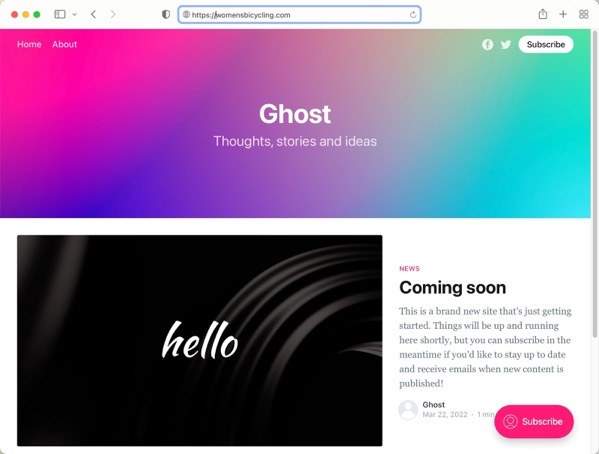
Manage your site
To login as the administrator add /ghost to the end of your URL and follow the prompts to create your new admin account.
Conclusion:
In this tutorial, you started from zero and now have a fully functional Ghost blog website hosted at your own domain name. Congratulations on your new website. I hope you found this article helpful. Thank you for supporting Elixm.com! 👋 😄
 Elixm.com
Leave a comment