If you have one or more websites or applications that utilize MySQL, then setting up your own MySQL server may be for you. I’m going to assume you have already made the decision that you want your own MySQL Server, and that you have an existing K8s cluster where you would like to deploy it. If you don’t then you might want to consider using Linode to host your k8s cluster. They have great pricing and make it super simple to get started.
Setting up MySQL on k8s (Kubernetes) is not difficult and we will go through the process here. I have created some deployment yaml files that you can download from my github at https://github.com/marctalcott/k8s-mysql-server. I also included all the code here in this post.
1) Setup your deployment files
Create a folder in Documents called ‘elixm-mysql’.
In that folder create a file named ‘mysql.yaml’
Paste the following code into ‘mysql.yaml’ and save it.
# mysql.yaml
# https://cloud.google.com/kubernetes-engine/docs/how-to/exposing-apps

# We will replace the CONFIG_ variables with values from the config.sh file

---
# Create persistent storage to hold our data when our pods go down.
apiVersion: v1
kind: PersistentVolumeClaim
metadata:
   name: CONFIG_APP_NAME-pvc-claim
   namespace: CONFIG_NAMESPACE
spec:
   accessModes:
   - ReadWriteOnce
   resources:
     requests:
       storage: 10Gi
   storageClassName: linode-block-storage-retain

---

apiVersion: v1
kind: ConfigMap
metadata:
  ## name of ConfigMap. This will be referred from volume definition
  name: CONFIG_APP_NAME-config
  labels:
    app: CONFIG_APP_NAME
data:
  ## default_auth is the name of config. This will be referred from volume mount definition
  default_auth: |
    [mysqld]
    default_authentication_plugin= mysql_native_password
---
# MySQL 8.0
kind: Deployment
apiVersion: apps/v1
metadata:
  name: CONFIG_APP_NAME
  labels:
    app: CONFIG_APP_NAME
apiVersion: apps/v1
spec:
  selector:
    matchLabels:
      app: CONFIG_APP_NAME
  strategy:
    type: Recreate
  template:
    metadata:
      labels:
        app: CONFIG_APP_NAME
    spec:
      containers:
        - name: CONFIG_APP_NAME
          image: mysql:8.0
          imagePullPolicy: Always
          ports:
            - containerPort: CONFIG_INTERNAL_MYSQL_PORT
              name: CONFIG_APP_NAME
          env:
          - name: MYSQL_ROOT_PASSWORD # use only for debugging
            valueFrom:
                secretKeyRef:
                  name: CONFIG_APP_NAME-secrets
                  key: rootpassword
          - name: MYSQL_DATABASE
            valueFrom:
                secretKeyRef:
                  name: CONFIG_APP_NAME-secrets
                  key: database
          - name: MYSQL_USER
            valueFrom:
                secretKeyRef:
                  name: CONFIG_APP_NAME-secrets
                  key: username
          - name: MYSQL_PASSWORD
            valueFrom:
                secretKeyRef:
                  name: CONFIG_APP_NAME-secrets
                  key: password
          volumeMounts:
          - name: CONFIG_APP_NAME-config-volume ## specify volume name
            mountPath: /etc/mysql/conf.d/default_auth.cnf ## path to mount file
            subPath: default_auth ## name of config
          - name: CONFIG_APP_NAME-persistent-storage
            mountPath: /var/lib/mysql
      volumes:
        - name: CONFIG_APP_NAME-config-volume ## volume name
          configMap:
            name: CONFIG_APP_NAME-config ## name of ConfigMap
        - name: CONFIG_APP_NAME-persistent-storage
          persistentVolumeClaim:
            claimName: CONFIG_APP_NAME-pvc-claim

---

apiVersion: v1
kind: Service
metadata:
  name: CONFIG_APP_NAME-cluster-service
  namespace: CONFIG_NAMESPACE
spec:
  type: ClusterIP
  # Uncomment the below line to create a Headless Service
  # clusterIP: None
  selector:
    app: mysql
  ports:
  - protocol: TCP
    port: CONFIG_INTERNAL_MYSQL_PORT
    targetPort: CONFIG_INTERNAL_MYSQL_PORT


---
# this creates a service to use internally

apiVersion: v1
kind: Service
metadata:
  name: CONFIG_APP_NAME
  namespace: CONFIG_NAMESPACE
spec:
  ports:
    - port: CONFIG_INTERNAL_MYSQL_PORT
      name: CONFIG_APP_NAME
  clusterIP: None
  selector:
    app: CONFIG_APP_NAME

---

# this will give an ip to be used externally
# https://cloud.google.com/kubernetes-engine/docs/how-to/exposing-apps
apiVersion: v1
kind: Service
metadata:
  name: CONFIG_APP_NAME-lb-service
  namespace: CONFIG_NAMESPACE
spec:
  type: LoadBalancer
  selector:
    app: CONFIG_APP_NAME

  ports:
  - protocol: TCP
    port: CONFIG_EXTERNAL_MYSQL_PORT
    targetPort: CONFIG_INTERNAL_MYSQL_PORT
YAML file for creating MySQL resources on a Kubernetes cluster.
Create another file in the same folder and name it ‘secrets.yaml’. Then paste the following content into it.
# secrets.yaml


apiVersion: v1
kind: Secret
metadata:
  name: CONFIG_APP_NAME-secrets
  namespace: CONFIG_NAMESPACE
type: Opaque
stringData:
  rootpassword: rootUsersPassword123
  database: example-db
  username: example-user
  password: exampleUsersPassword123
Feel free to change the values in the stringData section to your preferred settings.
Now we will create a bash file that will run all of our commands at the same time for us. This makes it so we don’t have to type a lot of individual commands at the command prompt. It will also handle setting properties in our yaml files with values we define here in variables. Create another file in the same folder named ‘config.sh’. Then paste in the following text.
# config.sh
#!/bin/bash


echo ""
echo "Setting variables."

NAMESPACE="default"
INTERNAL_MYSQL_PORT="3306"
EXTERNAL_MYSQL_PORT="60000"
APP_NAME="mysql"

TEMPFOLDER="temp" # we use this folder to put generated files and deploy. Then we delete it.


# ********** Edit the variables above as needed ****************

echo ""
echo "Checking folder so we don't accidentally overwrite."

if [ -d "$TEMPFOLDER" ]; then
  # Take action if $DIR exists. #
  echo ""
  echo "ABORTING because /${TEMPFOLDER} exists. Either delete the /${TEMPFOLDER} folder or change the config.sh file."
  echo ""
  exit 1
fi


#copy the yaml files in this folder to a temp subfolder
echo ""
echo "Creating folder."
mkdir $TEMPFOLDER

echo ""
echo "Copy files to temp folder."
cp *.yaml $TEMPFOLDER

# You also need to set values in the secrets.yaml
echo ""
echo "Replace variables in the yaml files."
# Replace CONFIG_NAMESPACE with $NAMESPACE
find $TEMPFOLDER -name '*.yaml' -exec sed -i '.bak' "s/CONFIG_NAMESPACE/${NAMESPACE}/g" {} +
find $TEMPFOLDER -name '*.yaml' -exec sed -i '.bak' "s/CONFIG_APP_NAME/${APP_NAME}/g" {} +
find $TEMPFOLDER -name '*.yaml' -exec sed -i '.bak' "s/CONFIG_INTERNAL_MYSQL_PORT/${INTERNAL_MYSQL_PORT}/g" {} +
find $TEMPFOLDER -name '*.yaml' -exec sed -i '.bak' "s/CONFIG_EXTERNAL_MYSQL_PORT/${EXTERNAL_MYSQL_PORT}/g" {} +

echo ""
echo "Apply files."
kubectl apply -f $TEMPFOLDER


# remove temp directory
echo ""
echo "Remove the directory."

rm -r $TEMPFOLDER

echo ""
echo "Completed updating Kubernetes."
echo ""
If you want to change the name or namespace that is used for your MySQL deployment, you only need to edit the ‘config.sh’ variables.
When you run the config.sh script, it will then replace values in your YAML files with values defined in the config.sh variables, and then it will run the kubectl commands to apply your new settings to your k8s cluster.
Make sure you have saved the files you created.
2) Run your script
At your command prompt, make sure you see your nodes by running the following:
kubectl get nodes
If you see your nodes, then run the following command:
bash config.sh
If all goes well you will see a result that looks similar to this:
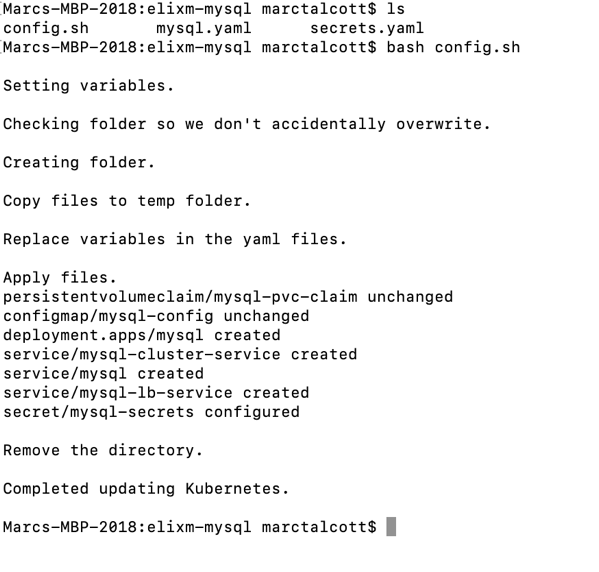
At this point, we have created our MySql Server, with a root user and a second user named example-user. And there should be a database on the server named example-db (unless you changed that). Let’s check the status with kubectl.
# Run these commands at your command line

kubectl get deployments
kubectl get pods
kubectl get services
If all went well, then you should see results like this:
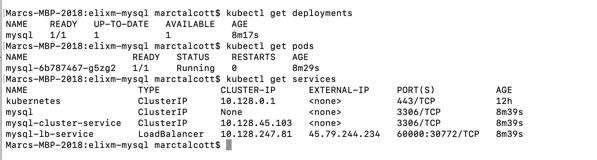
The above looks good. Our pod is running.
3) Connect with your MySQL Client
Let’s try to connect using MySQLWorkbench. Get the IP address that you will connect to from the External-IP of your ‘mysql-lb-service’. You can see that my external IP above is 45.79.244.234. Notice that I’m using the port I defined in my config.sh file as EXTERNAL_MYSQL_PORT=“60000”. EXTERNAL_MYSQL_PORT=“60000”. Also make to use the value of ‘rootpassword’ in your secrets.yaml and not your other user, unless you are connecting as the other user.
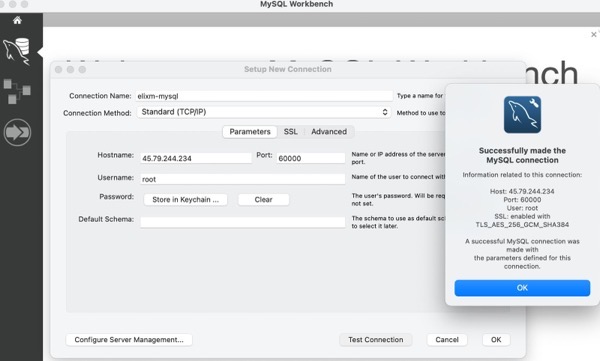
And then after we connect to our server we can see that we also have the example-db that we created during the deployment.
 The example-db was created when the scripts ran.
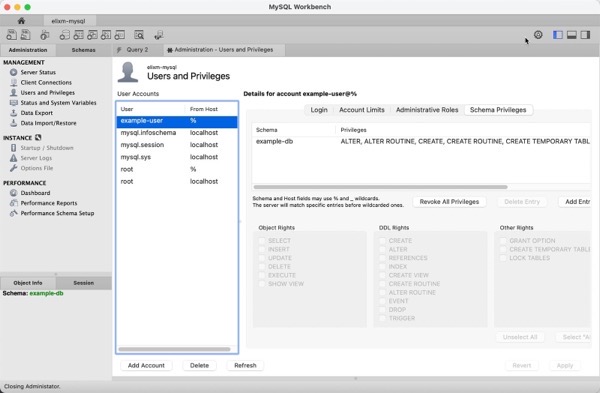
The example-user* has been created with access to the example-db as we can see in the next image.*
4) Connect to your MySQL server from a pod in the cluster
We are currently accessing the MySQL server using an external IP, however if we have code running on another pod inside this cluster, it can access the server internally either name or by internal IP address.
From your command prompt you can find the Internal IP by typing
kubectl get services
Which will return something like:

We can use the IP of ‘mysql-cluster-service’ to access our databases from another pod within the cluster.
Remember once you are done testing you can delete your Kubernetes cluster and your Volumes in the Lindoe dashboard to avoid being charged.
Conclusion
Setting up a MySQL database server using Kubernetes is pretty simple and quick. If you would like to try this out at no cost, please consider using my affiliate link to below to get an account and you can try this out without spending a dime. They are offering $100 credit for your first 60 days.
 Elixm.com
Leave a comment